Tag: Flash

  • Flash crashing with vSphere Client, fix for Mac

    Flash crashing with vSphere Client, fix for Mac

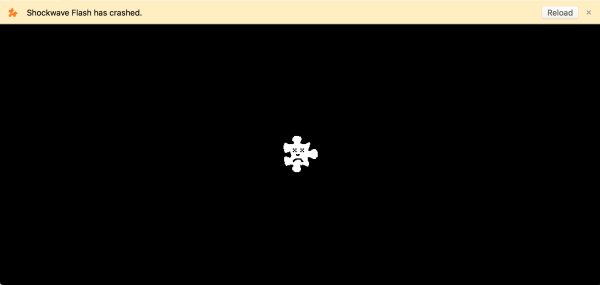
    Looks like a new Adobe Flash (a.k.a. Shockwave Flash) update caused widespread panic with users of the web-based flash vSphere Client 6.x leaving them with a “Shockwave Flash has Crashed” message and no vSphere Client. The immediate fix is to downgrade Adobe Flash.

    VMware has released an official KB 2151945 but it only provides instructions for Windows users.


    Here’s how to fix for Mac users

    1. Go to Adobe’s Archived Adobe Flash Player versions page.
    2. Scroll down to Flash Player Archives and download Flash Player 27.0.0.159 (released 10/10/2017) or use this direct link.
    3. Once the package is downloaded it should extract automagically. If it does not, extract it.
    4. Open the folder fp_27 and sub-folder 27_0_r0_159.
    5. Double click uninstall_flashplayer27_0r0_159_mac.dmg to mount the image, and run the Adobe Flash Player Uninstaller. This should uninstall the existing Flash Player on your computer.
    6. You will need to close your browser(s) at this point. Bookmark this page for reference later.

    For users of Firefox

    1. After uninstalling, double click flashplayer27_0r0_159_mac.dmg and then (re)Install Adobe Flash Player. Your browser(s) should still remain closed at this point.
    2. You will be prompted to select how you want Adobe to update Flash. Be sure to select Notify me to install updates.
    3. Unmount the two disk images you mounted earlier.

    For users of Chrome

    1. Delete the current flash version. Open Terminal, and run these commands:
      cd ~/Library/Application\ Support/Google/Chrome/PepperFlash/
      rm -rf 27.0.0.170
    2. Double click flashplayer27_0r0_159_macpep.dmg and then (re)Install Adobe Flash Player.
    3. You will be prompted to select how you want Adobe to update Flash. Be sure to select Notify me to install updates.
    4. Unmount the two disk images you mounted earlier.

    You should now be able to get back to work in VMware vSphere Client. Drop me a note if the instructions do not work for you, I’ll be glad to update the content.

  • Tweaking a CF/Flash Linux System

    This is a follow up to my post on Building a CF Card Disk Home Server. I made some simple tweaks so that the system would work faster and more reliably.

    Just to answer JJ’s question on the speed of the CF disk, it’s not faster than a regular hard drive, but that could be due to my cheap CF card. If you’re willing to spend a bit lot more for a faster CF card, it should match the read speeds of regular hard drives, though write speeds may still be lacking.

    So, the focus here is to tweak the system for a CF/flash drive. There are two key differences from hard drives to consider.

    • Flash disks have no problem with random access while hard drives are best accessed sequentially.
    • Flash disks have much more limited write cycles than hard drives.

    With these differences in mind, I picked out the following things to optimize.

    • Encourage random access. This is easily done by changing the default I/O schedulers (e.g. cfq or anticipatory) that buffer I/O requests so that hard drives can process them sequentially. Buffering is not useful for flash disks at all. The best scheduler for random access drives is the noop scheduler, which simply just a n00b (pun intended) FIFO queue. To use it, edit /etc/grub.conf and append elevator=noop at the end of the kernel line, e.g.

      title CentOS (2.6.18-164.11.1.el5)
      root (hd0,0)
      kernel /vmlinuz-2.6.18-164.11.1.el5 ro root=/dev/hda3 elevator=noop
      initrd /initrd-2.6.18-164.11.1.el5.img

    • Discourage swapping to disk. Since the CF disk is slow and has limited write cycles, I reduced the swapping to disk by editing /etc/sysctl.conf and adding a line vm.swappiness=0 at the end.
    • Don’t track file access. Tracking file access means writing the last accessed time to disk every time a file is read, i.e. one write operation for every read. Disable tracking of file access by adding the noatime,nodiratime options to mount points in /etc/fstab, e.g.

      /dev/hda3 / ext3 defaults,noatime,nodiratime 1 1
      /dev/hda1 /boot ext3 defaults,noatime,nodiratime 1 2

    • Don’t write unnecessary files (such as logs) to disk. If you need logs for debugging only while the system is running, mount them as tmpfs. I mounted /tmp and /var/log/httpd (Apache logs) as tmpfs by adding two entries to /etc/fstab as show below.

      tmpfs /tmp tmpfs defaults 0 0
      tmpfs /var/log/httpd tmpfs defaults 0 0

    Anyway, for the curious, here’s the speed of my CF drive. Modern SATA drives can get as much as 60MB/s, PATA drives a little slower around 30-40MB/s.

    # hdparm -t /dev/hda
    /dev/hda:
    Timing buffered disk reads: 58 MB in 3.05 seconds = 19.04 MB/sec

  • Flash Sites are Passé; The DOs and DON’Ts of Web Design

    I’m surprised to find Renoma Paris’s site (in English) made entirely out of Flash. While it took ages to load, it also played an annoying music that I couldn’t turn off unless I turned down my speakers.

    Once the page loaded, I was presented with a scrolling marquee of images. They were so small that I couldn’t figure out what they were, so I clicked on any random image that passes and it brought me to yet another page that required loading. I sat waiting and stared at the red squares in the middle of the screen as more of them appeared after several seconds.

    Frustrated, I closed my browser tab. I was on the site for barely two minutes.

    This is a classic example of how your site can literally drive people away. Try it yourself – go visit that site.

    Many business owners don’t understand that what they like to have on their own site isn’t necessarily what people want to see.

    Here’s some of my personal DOs and DON’Ts of web design.

    • DON’T use flash for your entire site. It’s not only slow and heavy on a computer’s CPU, it doesn’t scroll well within a browser, it renders fonts differently from browsers making them difficult to read at times, the back and forward buttons don’t work, etc. The list of problems are endless. Oh, and did I mention that those Flash guys charge an arm and two legs? Don’t use flash. Period.
    • DON’T embed audio into your pages. It might give an old lady a heart attack, or simply just piss young people off by distorting whatever Wonder Girls track they’re listening to at the moment.
    • DON’T use a splash page. They only serve to delay a user’s entrance into your site. 9 in 10 splash pages I’ve seen have no real purpose other than the intent to create a “grand entrance” to a site. People visit web sites in search for content and will gladly click on the first sight of an “ENTER” button.
    • DON’T upload full resolution photos and simply use the HTML width and height attributes to resize your images. Resize  images using an image editing program like Adobe Photoshop or GIMP to achieve optimal image quality and file size.
    • DON’T underestimate the power of image compression. Choose wisely between GIF, JPEG and PNG compression and experiment which works best for you. GIF generally works well with text, JPEG works well with photos and PNG works well if transparency is involved. When used incorrectly, your images will not only look bad, it will consume unnecessary storage and bandwidth.
    • DON’T pop shit windows up. It’s not only annoying but confusing. Open the next page in the same window – people know how to use the back button on the browser.
    • DON’T use FORM POSTs excessively. This is what most Java and ASP.NET developers don’t quite understand. FORM POSTs (or POSTBACKs) not only prevent the back button on the browser from working, they also prevent caches from doing their jobs.
    • DO engage a third party to check for grammar, spelling and content accuracy. Badly written content translates to a bad user experience.
    • DO test your web site over a real Internet connection at home to check its loading time. Most sites load in a split second over a LAN but not over the Internet.
    • DO read up on how to make your site cache friendly, especially if your site handles lots of traffic. ISPs spend tonnes of money on web caches to conserve their bandwidth and yet web caching is one of the most misunderstood technology on the Internet. When your site is made cache friendly, ISP caches will greatly improve your users’ experience especially if they are far away.
    • DO add more line spacing. It’s easier on the eyes.

    There’s much more to web design than this short list though. Here’s my golden rule – humans like control. Give it to them.

    On a side note, I provide consultation for web marketing. Feel free to drop me a (private) message.