Update: 2020/12/01 for macOS Big Sur, please follow instructions here.
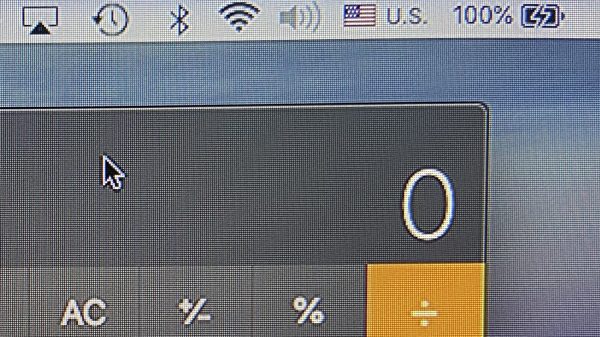
If you have a MacBook, iMac, or Mac mini and use a HDMI cable to connect to a Dell monitor, you may notice that the image seemed over-processed as if it was over-sharpened – I noticed this when I connected my MacBook Pro to my Dell U2913WM.
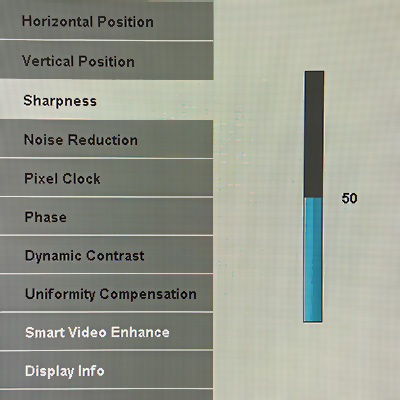
I found a setting in the monitor to turn the sharpness down from the default 50 to 0. It improved the image quality some, but when I switched back to my Mac mini (which was connected via DisplayPort), the quality was still better.
Sharpness setting in the Dell monitor; setting to 0 made it look better, but still does not match a direct input via mDP
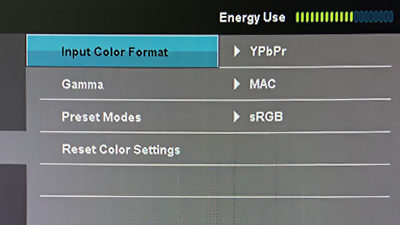
It turns out that this is caused by the Mac sending video signals as YPbPr (component) instead of RGB. This can be seen in the Color Settings menu.
Color Settings showing Input Color Format as YPbPr
Why does this happen? When a HDMI display is connected, the display’s capabilities are negotiated using what is known as an EDID. For some reason, Apple/Mac decided to default to YPbPr, and there’s no way for us to select/force RGB.
I found this blog, which also took a reference from another blog comment. TL;DR, download a small Ruby script and run it. The details are in those blogs, but I’m just writing it here for my own future reference.
Steps:
Run the Ruby script. It will generate a folder with a file, e.g. DisplayVendorID-10ac/DisplayProductID-4080
Reboot your Mac in recovery mode (hold down Command+R)
Copy the file to /Volumes/Macintosh\ HD/System/Library/Displays/Contents/Resources/Overrides
If the folder exists, copy the file into the folder.
If the folder doesn’t exist, copy the entire folder.
If the file already exists, make a backup before overwriting it.
Reboot, and reconnect your display.
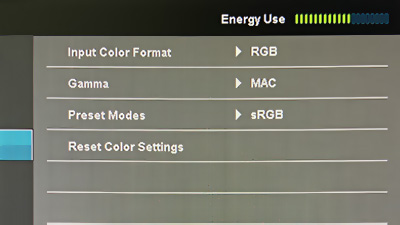
Color Settings showing Input Color Format as RGB after reboot
The difference is immediately noticeable. (I also had to restore my sharpness back to default: 50.)
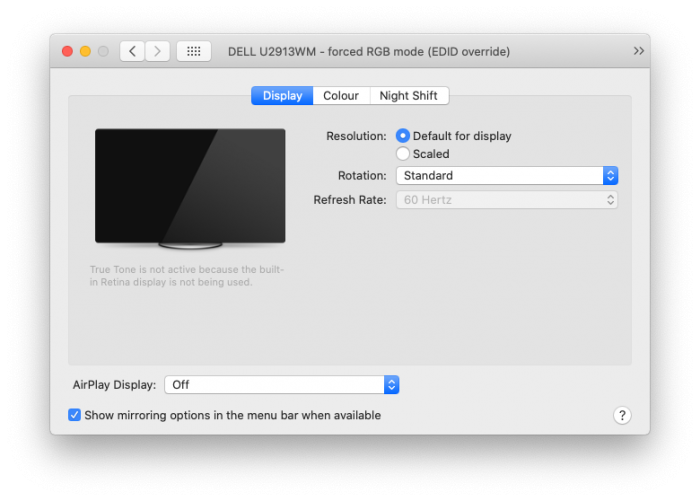
Displays in System Preferences showing EDID override.
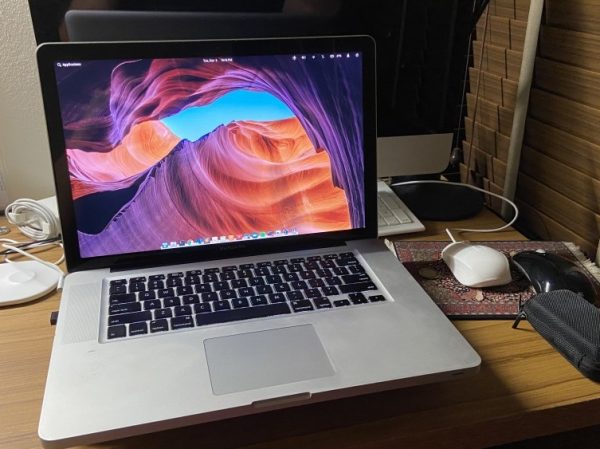
The second generation 2010 MacBook Pro 15″ (MacBookPro6,2) with the Intel Core i5/i7 is arguably one of the best MacBook Pros Apple ever made, bar a few issues. These aluminium unibody MacBooks were the first to have built-in batteries which gave it a much larger battery with incredible battery life, but still had user-replaceable SATA drives and RAM. The battery was also a replaceable component and not glued to the case. Till today, the screen, keyboard and touchpad on my 2010 MacBook Pro 15″ still beats most Windows laptops on the market – bear in mind this laptop is now 10 years old and has traveled the world with me.
After the 2010, MacBook Pros started going downhill: Late 2nd gen (2011) MacBook Pros were riddled with AMD GPU problems. 3rd gen (2013) “Retina” models had memory soldered on the board and had massive Staingate issues. 4th gen (2016) MacBook Pros had only USB-C ports, an unreliable keyboard with the butterfly mechanism, and a bunch of other issues such as thermal throttling.
In 2016, I upgraded to a new MacBook Pro Retina 15″ and was very hesitant to sell this old workhorse away, so I kept it as a spare which I used occasionally at home or when travelling. Unfortunately sometime around 2018 (I think) the laptop started to crash/freeze randomly: It seemed to be a GPU heat-related issue because it would crash when I ran something GPU intensive, such as AutoCAD Fusion. I was able to throttle the GPU, or force the laptop to use only the built-in Intel GPU, and it solved the problem – but not for long.
Thinking this might be a problem with the old, hardened, and poorly applied thermal paste, I pulled the heat sink apart and applied a new coat of thermal paste only to make it worse: this time macOS would get stuck when booting up. Turns out both my Intel iGPU and nVidia dGPU are having trouble and I have no idea why – maybe I flexed the motherboard ever so slightly while dismantling it and knocked some solder joints loose? Ugh.
So I decided to go down the path of installing another OS. Should I install Windows? That’s blasphemy.
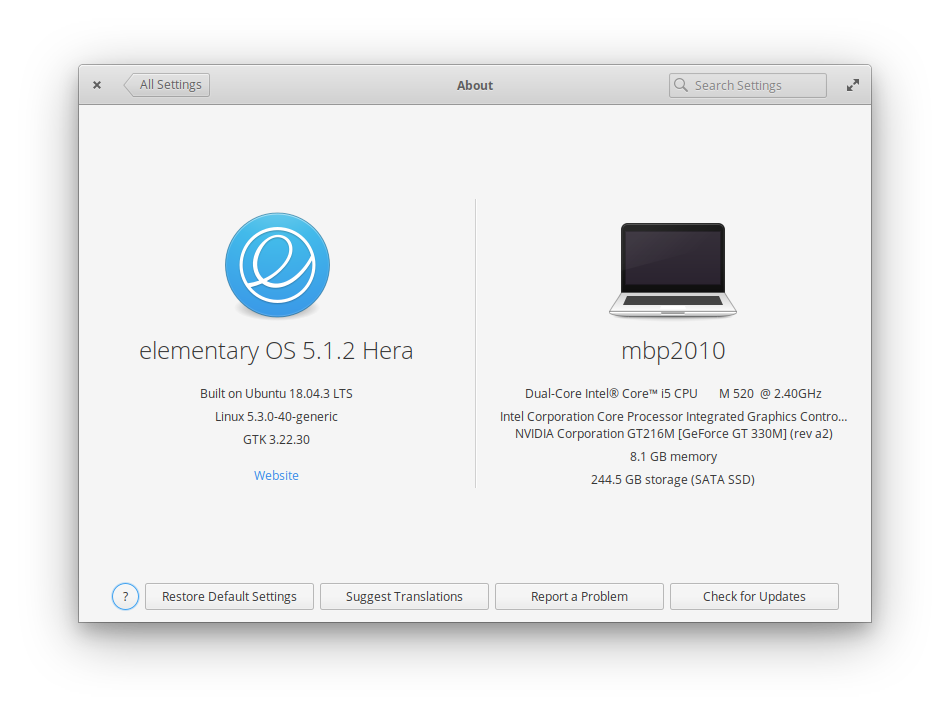
I decided to install Linux. I installed Elementary OS (5.1 Hera) and I am loving it so far.
Elementary OS 5.1.2 Hera on MacBook Pro 2010
Some “daily” apps I am running in Linux:
Google Chrome (duh!)
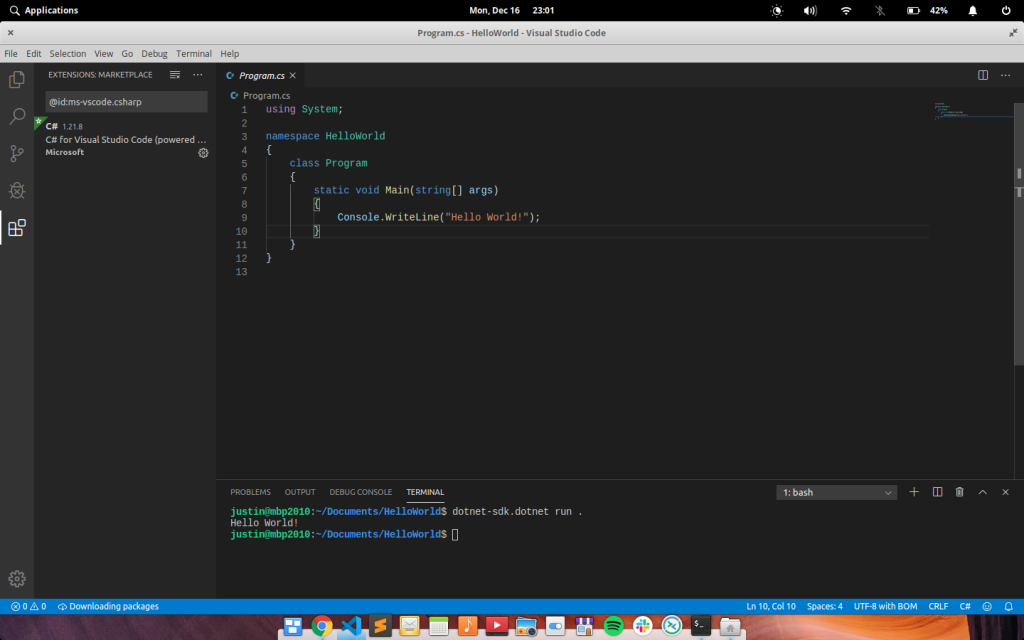
Visual Studio Code
Sublime Text
Insomnia (REST client)
Mailspring (Email client)
Remmina (RDP client)
Dropbox
Zoom.us
Skype
Spotify
VLC
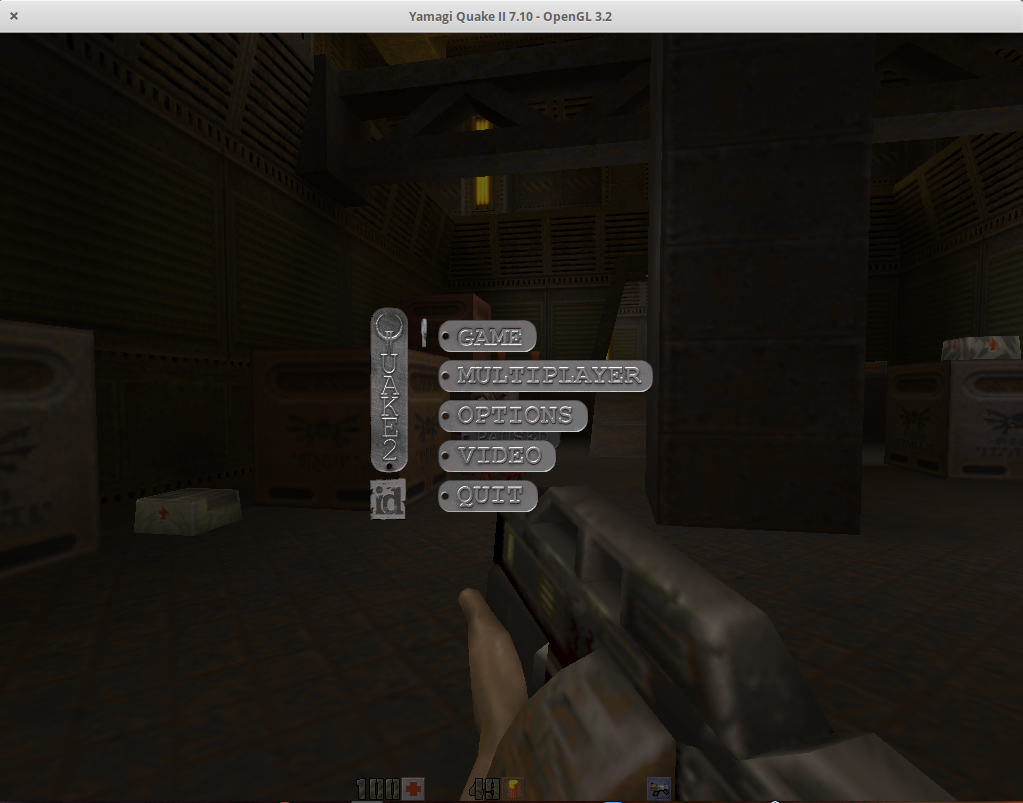
Quake 1, Quake 2, Quake 3 Arena, Quake 4
Visual Studio Code in LinuxQuake 2 – my favorite FPS of all time – in Linux
The rest of this blog is more of a documentation for myself, but you can reference what I have done here if you want to get your MacBook Pro 15″ 2010 with a bad dGPU or iGPU going with Elementary OS.
Booting my MacBookPro6,2 (15″, Mid 2010) with faulty GPUs* took a very long time and system momentarily freezes, with lots of errors containing the phrase flip_done timed out. Adding nomodeset or i915.modeset=0 at the end of the linux line in GRUB would allow the MacBook to boot fine using just the nouveau drivers.
* It’s kind of weird because the initial freezing/kernel panic in macOS seemed like a problem with the nVidia GT 330M dGPU, but now I am convinced my fucking around with thermal paste (or flexing the motherboard ever so slightly while doing so) might have messed up both the Intel i915 iGPU and also the nVidia dGPU, that’s why macOS wouldn’t even boot now.
This is very unusual because the known issue this model year has is a bad voltage regulator for the framebuffer. This is not the same problem as the 2011 models which had bad solder joints for the AMD Radeon dGPU.
It is also worth noting that installing the official nVidia drivers (nvidia-340) would cause Linux to freeze. It turns out that only the open source nouveau driver worked fine.
The FIRST problem actually manifested itself when booting the Elementary OS USB installer – it would freeze for several seconds, work for a few seconds, then freeze again, making it unusable. This seems to be a bug in the i915 driver’s Direct Rendering Manager (DRM). I found some old articles with similar errors (flip_done timed out), but none of the suggestions fixes.
The eventual fix would be to append nomodeset or i915.modeset=0 in GRUB when booting the installer.
After the installation, we will need to make this permanent by editing /etc/default/grub:
These sets the PCI registers to enable VGA support on the PCI Express X16 bridge (00:01.0), and also to enable bus-mastering on the nVidia GT216M (01:00.0).
Run sudo update-grub to apply all the above changes to /boot/grub/grub.cfg.
sudo update-grub
Now, reboot. The system should boot up fine. However, X11 is not using the nouveau driver at this point and is using the modesetting driver instead. This isn't a big deal if you don't need that much graphics power, but the I am also having trouble with the system waking up from sleep.
Here's a simple script that you can run to find out. It will print the driver in use. (I got this script from somewhere but I lost the reference/link.)
#!/bin/bash

if [ -z "$1" ]; then
    logfile=/var/log/Xorg.0.log
else
    logfile="$1"
fi

sed -n 's@.* Loading .*/\(.*\)_drv.so@\1@p' "$logfile" |
    while read driver; do
        if ! grep -q "Unloading $driver" "$logfile"; then
            echo $driver
            break
        fi
    done
By default, Elemetary OS did not configure X11 optimally and lets it run with defaults. This would let X11 run in the best compatibility mode on most systems but results in X11 not using the nouveau driver.
To resolve this, we need to generate an /etc/X11/xorg.conf file.
Hit Ctrl+Alt+F1(+Fn) to drop out of X11 to terminal mode. Login and run:
sudo service lightdm stop
sudo Xorg -configure
At this point, Xorg configuration would quit with a complaint:
Number of created screens does not match number of detected devices.
At this point, you will find a newly generated file /root/xorg.conf.new.
Edit the file, and delete one of the MonitorN, ScreenN and CardN entries. For my case, Monitor/Screen/Card0 are for the Intel i915 which I do not want, and Monitor/Screen/Card1 are for nouveau, so I deleted Monitor/Screen/Card0.
Move/copy the file to /etc/X11/xorg.conf:
mv /root/xorg.conf /etc/X11/xorg.conf
Restart lightdm (or reboot):
service lightdm start
X11 is now using nouveau. As a bonus, sleep/wake also works.
To conserve power, I also switched the dGPU to use the lowest clock speed.
When running with the Nvidia dGPU using the nouveau drivers, my battery life is severely affected. So as a bonus, I also tried running Ubuntu 18 LTS on this machine and surprisingly the Intel integrated i915 worked fine. I thought Elementary OS 5.x was based on Ubuntu 18?
Anyway, by disabling the dGPU, power draw can be reduced to around 15W idle versus 20-25W on the dGPU.
The magic trick here is to set some registers to disable the dGPU completely and to also switch the display to use the iGPU otherwise all you get is a black screen after switching off the dGPU.
Edit /etc/grub.d/10_linux, at around line 156, insert these before insmod gzio. (Taken from this reference.)
echo "        outb 0x728 1" | sed "s/^/$submenu_indentation/"
echo "        outb 0x710 2" | sed "s/^/$submenu_indentation/"
echo "        outb 0x740 2" | sed "s/^/$submenu_indentation/"
echo "        outb 0x750 1" | sed "s/^/$submenu_indentation/"
echo "        outb 0x750 0" | sed "s/^/$submenu_indentation/"
Edit /etc/default/grub and these to the following variable:
Run sudo update-grub to apply all the above changes to /boot/grub/grub.cfg.
Untested: By default the MBP boots with display switched to the dGPU, and if the above are set, there will be no display until the iGPU driver is loaded, so the following steps are required to set the EFI variable to tell the MBP to use the iGPU at boot time (at the stage of the Apple boot chime):
mount -t efivarfs rw /sys/firmware/efi/efivars/ # make sure efi is mounted

printf "\x07\x00\x00\x00\x01\x00\x00\x00" > /sys/firmware/efi/efivars/gpu-power-prefs-fa4ce28d-b62f-4c99-9cc3-6815686e30f9
(Note: This did NOT work on my MBP, the EFI is not writable for some reason, and the files have immutable attribute.)
This isn’t the first Mac I’ve owned. Although the iPhone is probably the best phone out there, Mac computers are crap. I found an old blog entry that I wrote when both mine and wifey’s iBook G3 failed at the same time. I also had an extremely hard time replacing the slow 4,200 rpm hard drive in my old iBook. To date, the new MacBooks are still running 5,400 rpm drives. Give me a break, Dell’s already selling laptops with 7,200 rpm drives.
After making three trips to the Apple Service Center at AMK for motherboard, display and power adapter failures, I sold my problematic iBook. Wifey wasn’t so lucky and her iBook failed on her before she could sell it so we sold the parts – AirPort card, power adapter, battery, etc. for money instead. The unsold remains are still in my room.
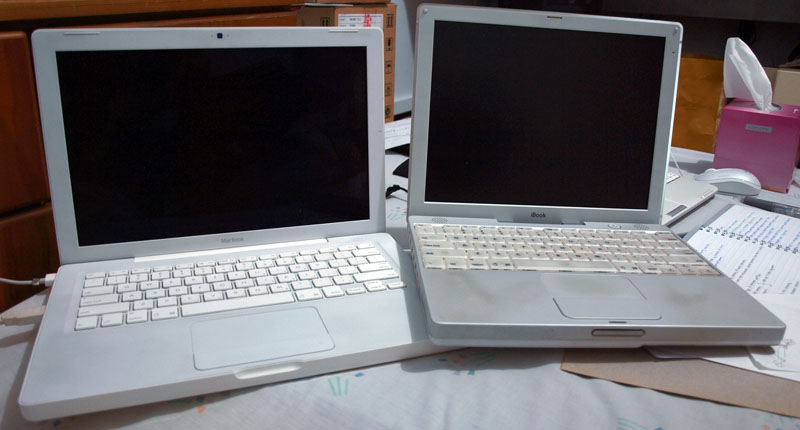
Wifey's iBook G3 meets the MacBook.
I’m using my (sis’s) MacBook now and the adapter has been acting up for the past few days. It would go on and off intermittently but with some wriggling of the wire near the power brick, the problem goes away. I knew the wires were fraying, but there’s nothing I could do about it. Apple didn’t design their things to be user-serviceable, otherwise I would have taken it apart and soldered the wire. Apple needs to go green with their service program!
The battery on my MacBook is dying so I decided to just take it apart. You know, nothing stops my curiosity. I love taking things apart ever since young, though I wasn’t able to put most of them back together… last time. Hopefully, some things improved.
Of course, I’ve paid for my curiosity with nasty shocks – just last week, I got a nasty zap from a flash capacitor inside my Canon Powershot A70. I got so pissed I just shorted the capacitor to get rid of the current in it. Some months ago, I got super freakin’ zapped by the household 240V AC current while taking apart a Sun PSU. The house tripped.
Actually, this MacBook belongs to my sis, but she hated it so much so I swapped my laptop with hers, so technically, I’m taking apart her battery.
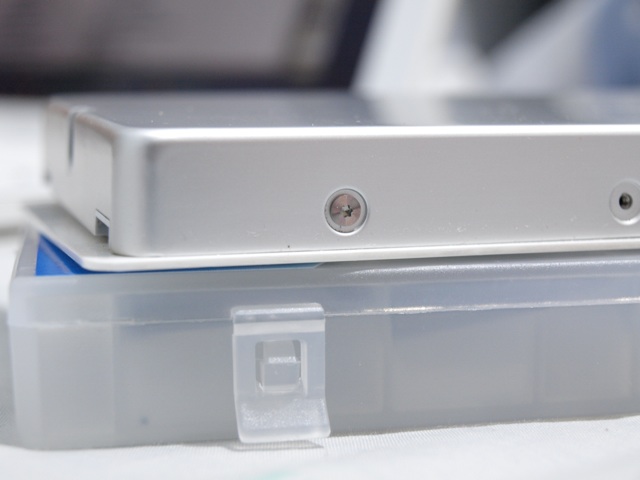
Anyway, here’s the takeapart journey. Small torx screwdrivers are needed to remove all ten screws on both sides of the battery.
Tiny torx screws at the sides of the MacBook battery.