Month: July 2020

  • Why you SHOULD chope your seat, especially during COVID-19

    Chope culture. A uniquely Singaporean culture where diners at open food centers place small items such as tissue packets, business cards or water bottles to reserve a table or seat.

    I know many people are not in favour of this, and I personally used to hate it, but let me explain using the logic of parallelism that it is in fact more efficient. Everybody should chope their seats and split up and quickly order their meals, so that they can convene, eat, and leave ASAP – especially during this COVID-19 situation where half the seats have been crossed out for safe distancing. Quicker turnaround means more people get their seats, less community spread, etc.

    … using the logic of parallelism that (chope culture) is in fact more efficient

    The other reason to socially accept the “chope” culture is because those eating alone or carrying a child can find it very difficult to find a seat without a companion.

    So why do people hate it? Because “chope” is not gracious? Rubbish lah. It’s exactly because we are ungracious – when we want a seat, we feel a sense of entitlement to a vacant seat. We see an inanimate object, and feel that it doesn’t deserve a “seat”. Seriously, what’s the difference between a tissue packet and a fully grown man waiting at the table?

    … what’s the difference between a tissue packet and a fully grown man waiting at the table?

    With that, I shall share a true story…


    I went to ABC brickworks hawker this afternoon Tuesday 28 Jul 2020 at around 1PM to eat lunch with my colleague. We placed one tissue + Fisherman’s Friend on table to “chope” a 2 pax table, and quickly left to order our food.

    Then this father (50+) and his son (20+) duo came, sat down, and moved our “chope” away. (I saw with my own eyes as my stall is nearby.)

    Then when we returned, the son initially denied moving the tissue, then the father came and say our tissue never put in the center, cannot see properly, etc. etc. A big pack of lies.

    So I said: “Please lah, it was in the middle. I saw you move it, so please admit it.”

    OK, they left. Then we started eating.

    Eat halfway, the uncle came back and started scolding us. Say this is neighbourhood hawker, no such thing as reservation, etc. etc.

    I say, please lah, we “chope”, quickly order, quickly eat, quickly go. Isn’t it more efficient than one person sit, one person order and take turns?

    Then he started lecturing us, “You listen carefully (你听好好), I tell you (我跟你讲), this place is not CBD, not restaurant, this is neighbourhood, etc. etc.”

    A lot of hokkien arguments ensued (when I switch to hokkien, things are getting serious…)

    I said, look, so what you want? Limpeh eating my lunch halfway. Say sorry? OK, “sorry”. Now, leave and let me eat my lunch. Then you still not happy, what you want? Call police?

    Then after my meal, I turned around briefly looking for a stall to order drinks. Then I heard the uncle shouting from his seat: “Come lah, come come. Come!!” I didn’t even see them – they were sitting at another table. That’s when I realised they were behind, still wanting to pick a fight. ¯\_(ツ)_/¯


    We went, ate, and left all under 20 minutes. Including the 3 minutes or so spent arguing with the uncle.

    Please, “chope” is more efficient. Trust me, I’m an engineer.
  • Raspberry Pi 3.5″ Display X11 Configuration

    Raspberry Pi 3.5″ Display X11 Configuration

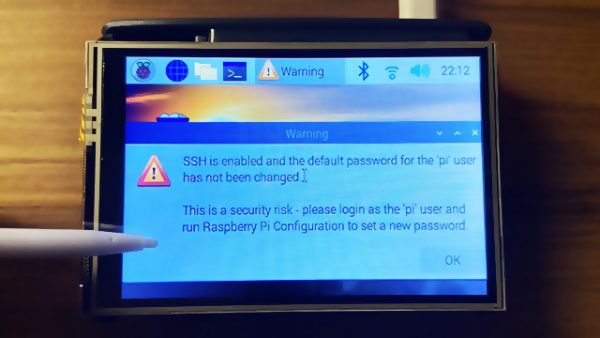
    I got a really cute 3.5″ TFT display for my RPi from Cytron which has an ADS7846 touchscreen controller.

    After installing the drivers (by following the instructions here), I realised that the X/Y axes of the touchscreen were flipped.

    It took me a while to figure this out, so I’m writing a blog entry as a documentation.


    SSH has been disabled by default on a fresh RPi OS installation. To use the RPi in headless mode with SSH enabled, create an empty file in /boot/ssh. This can be done via another computer, e.g. on my Mac:

    touch /Volumes/boot/ssh

    After the RPi boots, connect it to a LAN cable, SSH to it (find its IP address via DHCP server leases table) and then run raspi-config to do some initial configuration.

    raspi-config

    Now install the LCD drivers.

    To rotate the display so that the HDMI ports are on top. Edit /boot/config.txt:

    dtoverlay=tft35a:rotate=270

    Next, the touchscreen input will also have to be rotated accordingly. Edit /etc/X11/xorg.conf.d/99-calibration.conf:

    Section "InputClass"
      Identifier "calibration"
      MatchProduct "ADS7846 Touchscreen"
      Driver "evdev" # Force the evdev driver
      Option "Calibration" "3936 227 268 3880" # Default values
      Option "SwapAxes" "1" # Required for landscape orientation 
      Option "InvertX" "true" # Required for rotate=270
      Option "InvertY" "true" # Required for rotate=270
    EndSection

  • Mac and Dell monitor display quality issues over HDMI

    Mac and Dell monitor display quality issues over HDMI

    Update: 2020/12/01 for macOS Big Sur, please follow instructions here.

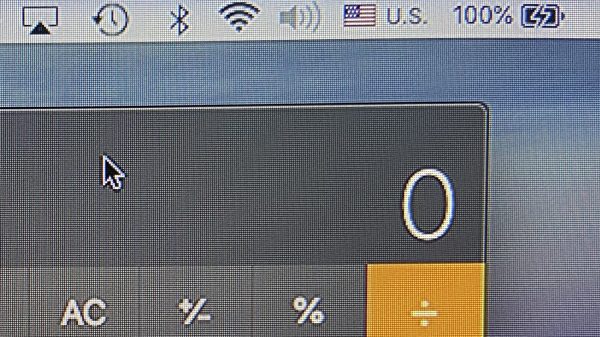
    If you have a MacBook, iMac, or Mac mini and use a HDMI cable to connect to a Dell monitor, you may notice that the image seemed over-processed as if it was over-sharpened – I noticed this when I connected my MacBook Pro to my Dell U2913WM.

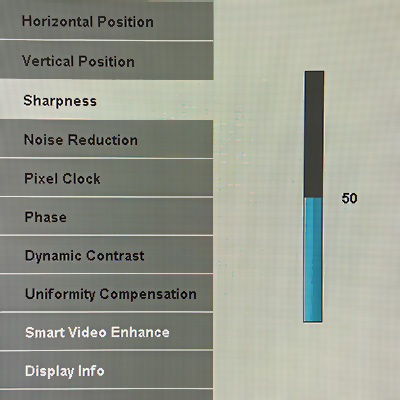
    I found a setting in the monitor to turn the sharpness down from the default 50 to 0. It improved the image quality some, but when I switched back to my Mac mini (which was connected via DisplayPort), the quality was still better.

    Sharpness setting in the Dell monitor; setting to 0 made it look better, but still does not match a direct input via mDP

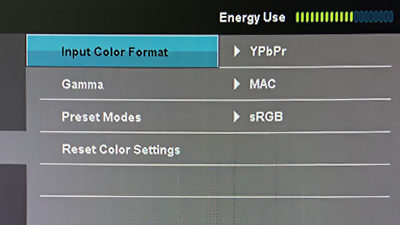
    It turns out that this is caused by the Mac sending video signals as YPbPr (component) instead of RGB. This can be seen in the Color Settings menu.

    Color Settings showing Input Color Format as YPbPr

    Why does this happen? When a HDMI display is connected, the display’s capabilities are negotiated using what is known as an EDID. For some reason, Apple/Mac decided to default to YPbPr, and there’s no way for us to select/force RGB.

    I found this blog, which also took a reference from another blog comment. TL;DR, download a small Ruby script and run it. The details are in those blogs, but I’m just writing it here for my own future reference.

    Steps:

    • Run the Ruby script. It will generate a folder with a file, e.g. DisplayVendorID-10ac/DisplayProductID-4080
    • Reboot your Mac in recovery mode (hold down Command+R)
    • Copy the file to /Volumes/Macintosh\ HD/System/Library/Displays/Contents/Resources/Overrides
    • If the folder exists, copy the file into the folder.
    • If the folder doesn’t exist, copy the entire folder.
    • If the file already exists, make a backup before overwriting it.
    • Reboot, and reconnect your display.
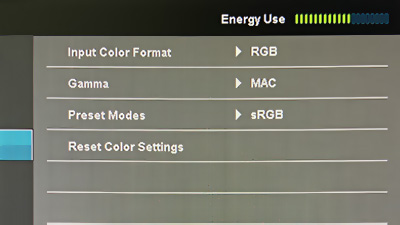
    Color Settings showing Input Color Format as RGB after reboot

    The difference is immediately noticeable. (I also had to restore my sharpness back to default: 50.)

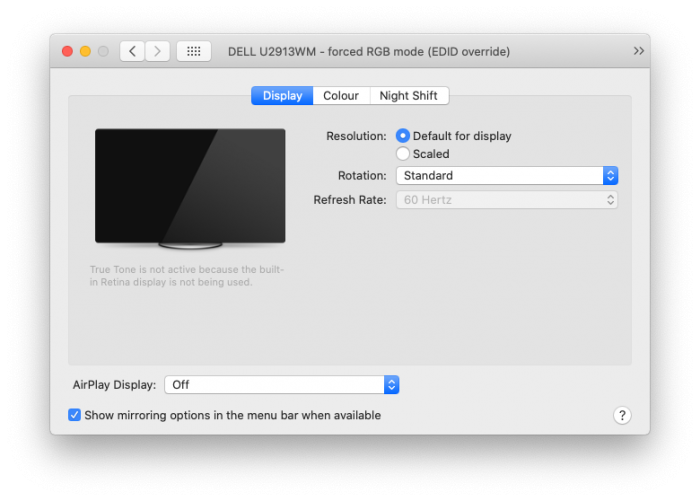
    Displays in System Preferences showing EDID override.